
A desk can look organized on the surface and still hide a mess of cables underneath. Many people assume wire clutter is just part of using monitors, chargers, and desk accessories every day. In reality, better desk cable management often comes down to a few small choices made in the right places.
That is what turns loose cords into cleaner wire organization and makes simple tools like cable clips more useful than they first appear. This article explains how to organize desk cables in a way that looks cleaner, works better, and stays manageable over time.
Start with the Cables You Actually Use
The first step is not buying organizers. It is removing the cables you no longer need. Old charging cords, duplicate adapters, and rarely used accessories make cable clutter harder to fix because they hide the lines that actually matter.
Start by tracing each cable from the device to the power source or port. If a cable does not belong to something you use regularly, take it out before you organize the rest.
The Basic Tools for Desk Cable Management
A few simple tools usually solve most cable problems. The goal is not to use every cable accessory available. It is to use the right one in the right place.
The most useful tools are:
- Cable clips for guiding wires along the desk edge or frame
- Hook-and-loop ties for bundling cables without making them hard to change
- An under-desk tray for holding a power strip and extra cable length
- A cable sleeve for grouping several wires into one cleaner path
- A cable box for adapters or power strips that would otherwise stay visible
Many strong competitor articles follow the same pattern: they group solutions by the problem they solve. That is why cable clips, trays, sleeves, and boxes appear so often. Each one handles a different part of the mess.
How to Organize Desk Cables Step by Step
A clean result usually comes from doing the work in the right order.
- Unplug and sort everything.
Lay out the cables so you can see what belongs to the monitor, laptop, speakers, charger, and power strip. - Separate power cables from data cables.
This makes the setup easier to understand and easier to adjust later. - Group cables by destination.
If several wires all run toward the same side of the desk, bundle them only after you confirm the path. - Route the cables along the desk frame.
Running cables against the desk structure usually looks cleaner than letting them fall straight to the floor. - Secure the route with cable clips or ties.
Use clips where cables need direction and ties where they need to stay bundled. - Leave one or two easy-access cables where needed.
Phone and laptop chargers do not always need to disappear completely. They just need a controlled place.
Solutions That Work for Different Cable Problems
Some cable-management ideas keep showing up in high-ranking articles because they match common desk problems.
- For dangling wires behind the desk: use clips or a sleeve to create one guided path
- For a messy power strip: move it into an under-desk tray or a cable box
- For visible charging cables on the desktop: keep only one active line within reach
- For monitor and laptop cables: route them behind the desk rather than across the surface
- For extra cable length: coil it neatly and secure it before hiding it
This kind of problem-based organization works better than buying random accessories. It gives each cable a place and each tool a purpose.
How to Hide Cables Under and Behind the Desk
The most visible cable mess usually sits in two places: behind the desk and underneath it. That is where the setup starts to feel chaotic, even if the desktop itself looks clean.
An under-desk tray is often the best place to start because it gets the power strip and excess cable length off the floor. From there, you can run the main cable path along the rear edge or underside of the desk and use clips to keep it stable.
If the desk is against a wall, it helps to keep the visible drop to a minimum. One controlled line from the desk to the outlet usually looks much cleaner than several loose cords hanging at different angles.
Tip: Aim for one visible cable path, not zero visible cables at any cost. A controlled line usually looks better than a setup that is over-tightened or hard to access.
Desk Setups That Make Cable Management Easier
Some desk layouts are naturally easier to keep tidy. A monitor arm, a laptop stand, or a desk riser can create more usable space and make cable routing simpler.
This is where ThunderTech’s public product categories fit naturally into the discussion. Its Monitor Bracket category includes single-, dual-, triple-, and quad-monitor options, and its Monitor Riser products provide another desktop support format within the same lineup. For a lighter single-screen setup, ThunderTech’s ALS-100 can work if your monitor matches its official limits: up to 32 inches, 100×100 VESA, and 17.6 lb / 8 kg per plate.
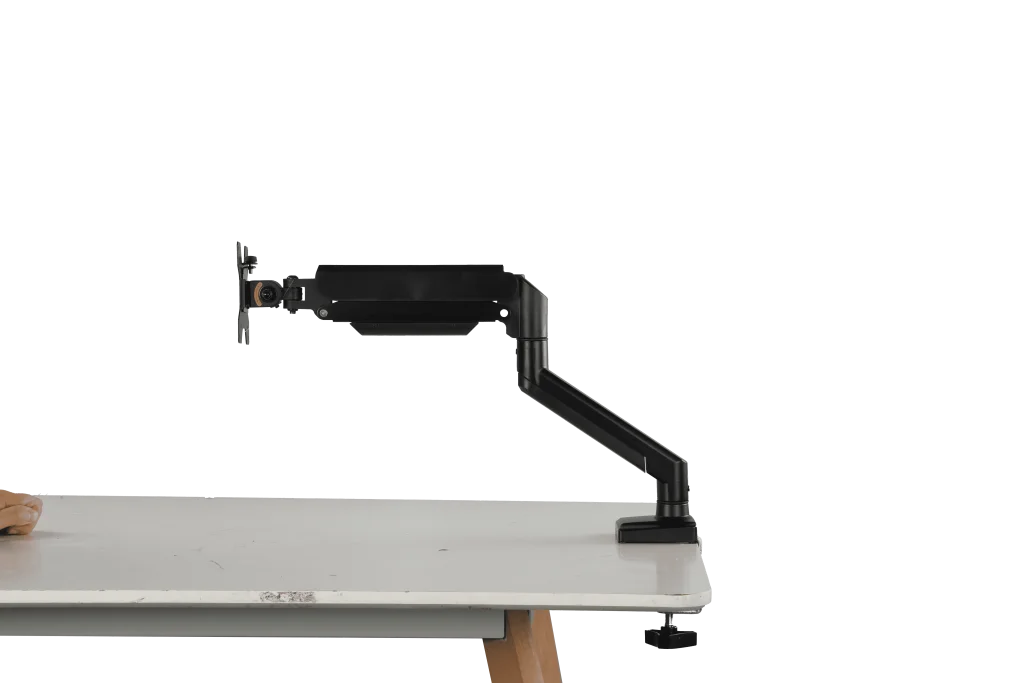
A monitor arm can simplify desk cable routing by lifting the screen and reducing clutter across the work surface.
The point is not that one product solves every cable problem. It is that the right desk structure can make cable organization much easier to maintain.
Common Cable Management Mistakes
Some cable setups still look messy even after a lot of effort. Usually the problem is not effort. It is ordered.
A few common mistakes are:
- Bundling cables before testing where they need to go
- Leaving the power strip on the floor
- Mixing every wire into one tight bundle
- Using too many different organizers in one setup
- Pulling cables too tight to adjust later
Good wire organization should still leave room for real use. A desk that looks neat but becomes frustrating every time you charge a device is not really organized.
FAQ About Desk Cable Management
What is the easiest way to organize desk cables?
Start by removing cables you do not need, then guide the rest along one clear path. Cable clips and an under-desk tray usually make the biggest difference first.
Are cable clips enough for desk cable management?
They help a lot, but they work best as part of a larger setup. Clips guide cables well, while trays, sleeves, and ties handle the bulk and hidden sections.
How do I make my desk look cleaner without hiding every cable?
Keep cables off the desktop, route them along the desk frame, and reduce visible drops to one controlled line. A cleaner setup depends more on order than on complete invisibility.