
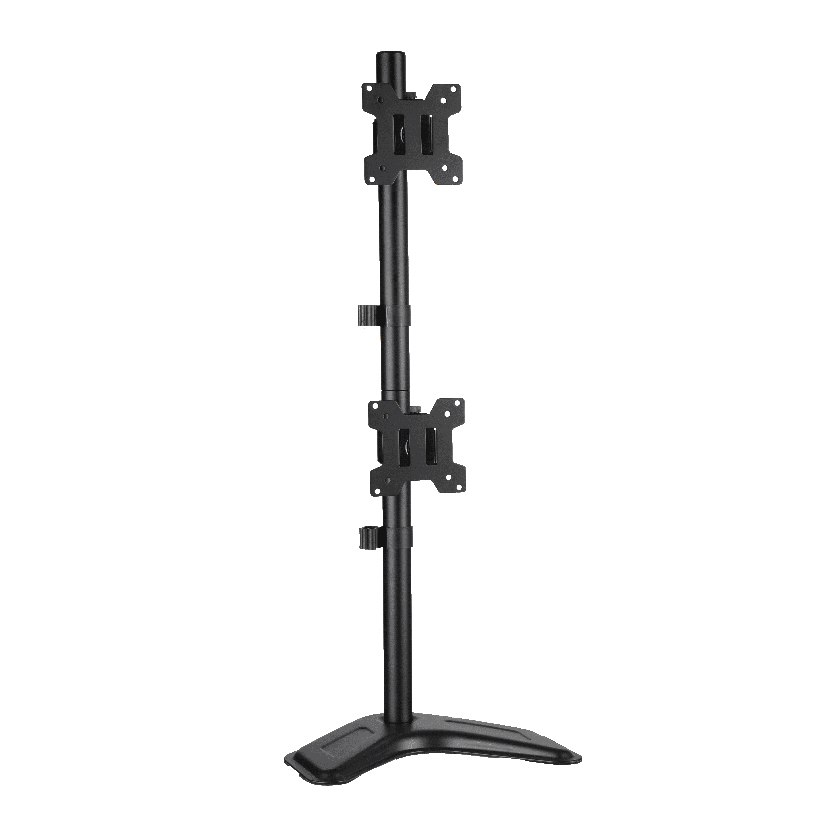
You bought a second screen to read code, edit long documents, or scroll feeds top to bottom, and the factory desk stand only locks it into landscape. Running a vertical monitor without stand hardware means pulling that bulky base off and bolting the panel to a VESA arm or wall plate instead, then rotating the screen 90 degrees into portrait. The payoff is a taller reading area, a clear desk surface, and a screen you can swing out of the way. The work is mostly checking three numbers before you buy. This guide walks through how the setup works, what to measure, and which mount fits which desk.
Why the factory stand blocks portrait mode
Most included stands are built for one job: hold the panel upright in landscape at a fixed height. A few premium monitors ship with a stand that pivots, but the majority do not rotate at all, and even the ones that do tend to wobble at full portrait extension. That is the core reason people want to ditch the factory base in the first place.
Pulling the stand introduces a different question, which is what the panel attaches to instead. A vertical monitor mount solves this by holding the screen from those rear holes rather than from a base. Almost every monitor has four threaded holes on the back arranged in a square. That is the VESA pattern, and it is the anchor point for any mount. If your monitor has those holes, the portrait conversion is straightforward. If it does not, you need a VESA adapter plate first, and that adds a step.
What you actually need to check first
Three specs decide whether a clean portrait install works or fails. Measure them before ordering anything.
- VESA hole pattern. Look at the four holes on the back of the panel and measure the distance between them, center to center. The two common patterns are 75x75mm on smaller screens and 100x100mm on larger ones. Your mount has to match, or accept both.
- Monitor weight. Find the panel weight without the stand, listed in the spec sheet in pounds or kilograms. A 24 inch screen often runs 6 to 11 lbs, while a 32 inch runs heavier. The arm must be rated above that, with margin.
- Rotation clearance. A screen in portrait is taller than it is wide. Measure from the mount point up to the top edge so the corner does not hit a shelf, cabinet, or the desk surface as it spins.
Get those three right and the rest is bolts. Skip the weight check and the arm sags within weeks.
The main ways to mount a vertical monitor without stand
There is no single product called the portrait mount. Instead, a few categories all let you rotate the screen, and they trade desk space against flexibility.
- Gas spring monitor arm. A spring-loaded arm clamps to the desk edge and floats the screen, letting you rotate, raise, and push it back with one hand. This is the most common pick for portrait use because the rotation is built into the head.
- Mechanical (spring-free) monitor arm. Tension is set with an Allen key rather than a gas cylinder. A portrait monitor arm of this type holds position firmly and costs less, but you adjust it less often.
- Wall mount with rotation. A VESA wall plate frees the desk entirely. Good when the screen stays in one spot and you want zero desk footprint.
- Desk-clamp single post. A fixed pole with a rotating VESA head. Cheapest route to rotate monitor vertical, with the least height flexibility.
If you reposition the screen through the day, a gas spring VESA monitor arm portrait setup is worth the extra cost. If the screen lives in one place, a mechanical arm or wall plate does the same job for less.
How the mount types compare on the things that matter
Choosing a vertical monitor without stand setup comes down to a few measurable factors: how much weight the mount holds, whether it rotates to portrait out of the box, and how much desk it frees. The table lines up the common options. Typical price is a rough US street range.
| Mount type | Typical price | Rotates to portrait | Weight range | Desk space freed |
|---|---|---|---|---|
| Gas spring monitor arm | $40 to $120 | Yes | 4 to 20 lbs | High |
| Mechanical dual arm | $35 to $90 | Yes | up to ~18 lbs | High |
| VESA wall mount | $20 to $60 | Yes (pivot models) | 8 to 33 lbs | Full |
| Desk-clamp single post | $18 to $45 | Yes | 4 to 15 lbs | Medium |
The pattern is clear. A gas spring arm gives the smoothest rotation and the easiest height changes, which is why it suits a desk where the screen moves. A wall mount frees the most space but fixes the position. A single post is the budget entry into a monitor arm no desk stand layout, trading adjustability for price.
Getting the rotation right during install
A portrait install has one extra wrinkle over a normal landscape mount: cable slack and software. Plan for both.
- Cable length. A rotated screen pulls the HDMI or DisplayPort cable into a tighter bend. Leave a loop of slack so the connector is not strained when you spin the panel.
- Display orientation in software. After you rotate monitor vertical physically, set the operating system to portrait. On Windows it is Display Settings, then Orientation, then Portrait. On macOS it is System Settings, Displays, Rotation.
- Level check. A portrait screen shows tilt more obviously than landscape. Use the arm’s fine adjustment to get the vertical edge truly straight.
Done in order, the whole job runs about twenty minutes. The physical mount is fast; the software flip takes thirty seconds once you know where the setting lives.
Where ThunderTech Pros fits for a portrait setup
ThunderTech Pros manufactures its mounting hardware in its own ISO 9001:2015 certified factories, with 17 years of production experience across TV mounts, monitor arms, and AV mounting solutions. That production consistency matters for portrait use, because a rotated panel puts uneven load on the arm joint, and tight tolerances in the steel are what keep the head from drifting back toward landscape over months of use.
For a home-office user who wants portrait orientation and frequent height changes, the ThunderTech Pros QTH-1CW gas spring arm fits 13 to 32 inch screens, handles 5 to 20 kg, and ships with both a desk clamp and a grommet mount, so it works whether your desk has a free edge or a pre-drilled hole. For a tidy dual-screen layout where one panel goes portrait and one stays landscape, the DA-2 mechanical dual arm holds up to 32 inch panels at 8 kg per arm. You can compare the current monitor arm lineup on the ThunderTech Pros monitor mount range before matching one to your panel size.
To be fair, ThunderTech Pros is one option among several. Ergotron sets the gas spring standard with its LX line and excellent build quality at a higher price, Mounting Dream is a strong value pick on Amazon, and Sanus has wide retail reach. The right call depends on your monitor weight, how often you rotate it, and your budget.
Matching the mount to your desk
A few common situations make the choice quick.
- You switch between portrait and landscape daily: a gas spring VESA monitor arm portrait setup rotates with one hand and holds either way.
- The screen stays portrait permanently: a mechanical arm or a pivoting wall plate locks it firmly for less money.
- No room on the desk at all: a VESA wall mount gives you a vertical monitor without stand and zero desk footprint.
- Tight budget, single screen: a desk-clamp single post is the cheapest path to rotate the panel upright.
- Monitor has no VESA holes: buy a VESA adapter plate first, then any of the above.
The deciding factor is how often the screen moves. Frequent movers want a gas spring; set-and-forget users save money with a mechanical arm or wall mount.
Start with three measurements, then mount
Pick your VESA pattern, your panel weight, and your rotation clearance first, because those three numbers rule out the wrong mounts before you spend a cent. Once you know them, the choice falls into place: gas spring arm for a screen that moves, mechanical arm or wall plate for one that stays put. Pull the factory base, bolt the panel to the VESA head, flip the display setting to portrait, and a vertical monitor without stand turns a cramped desk into a tall, clear workspace. Confirm the weight rating and hole spacing before you order, and the install is a short job rather than a return trip.